
Terraform Baseline Deployment
Deploying the Terraform Baseline
This folder contains the Terraform baseline for the Day 1 Cloud Security lab environment.
The goal of this baseline is to create a small Azure environment that students can use during the Identity and Access Management labs.
You will use this environment to investigate Azure resources, managed identities, RBAC role assignments, Key Vault access, logging resources, and later security improvements.
1. What this baseline creates
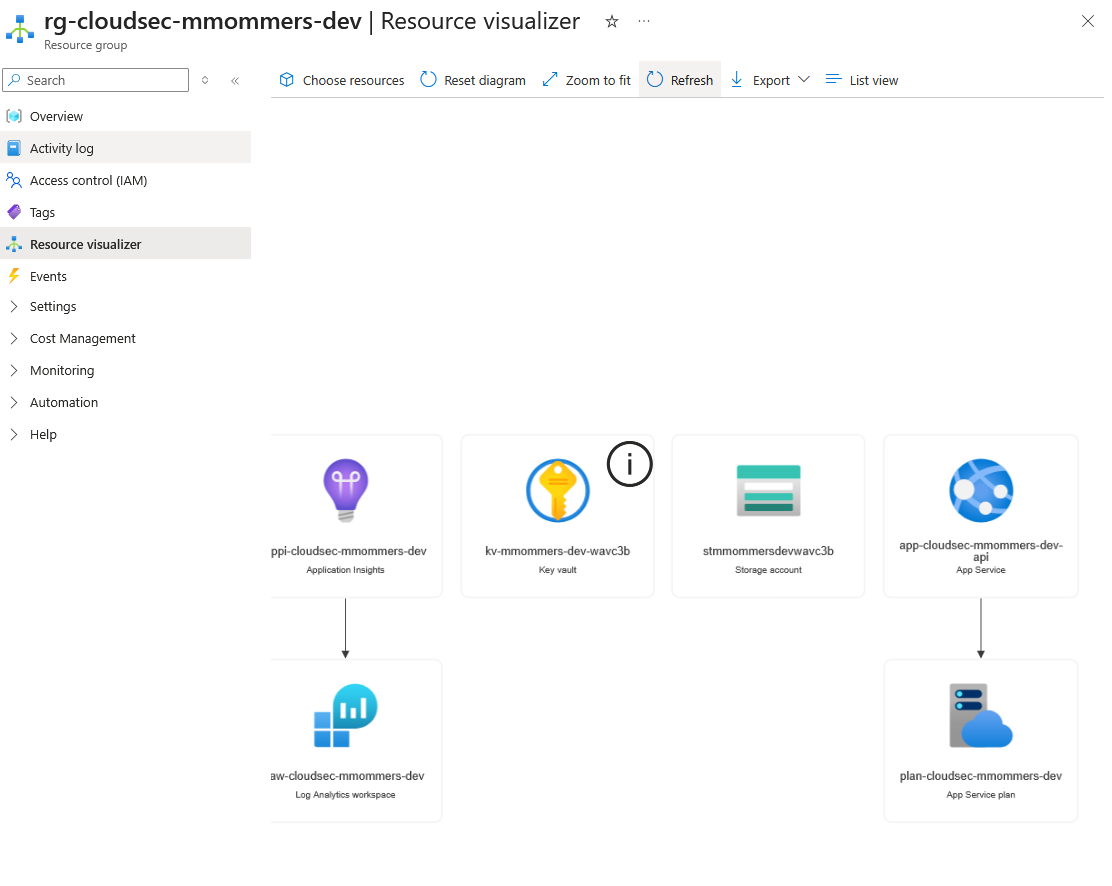
The Terraform configuration creates the following Azure resources:
Resource Group
Storage Account for frontend static website hosting
App Service Plan
Linux Web App for the backend API
System-assigned managed identity for the backend
Key Vault
Demo Key Vault secret
Log Analytics Workspace
Application Insights
These resources form the basic lab environment for Day 1.
Info
The environment is intentionally small, we will add more resources as we go. Not all resources will be setup through Terraform.
2. Requirements
Before continuing, make sure you have:
Requirements Checklist
Check your local tools:
az version
terraform --version
And that you obtain the source code using git:
Day 1 Infrastructure
3. Log in to Azure
Log in with Azure CLI:
az loginA browser window will open. Log in with your course Azure account.
After logging in, check the active account and subscription:
az account show --output tableVerify the following values:
Subscription name
Subscription ID
Tenant ID
Signed-in user
4. Select the correct subscription
If you have access to multiple Azure subscriptions, list them:
az account list --output tableSet the correct subscription:
az account set --subscription "<SUBSCRIPTION_ID_OR_NAME>"Check again:
az account show --output tableWarning
Always verify the active subscription before running Terraform.
Terraform will create real Azure resources. If the wrong subscription is active, resources may be deployed to the wrong environment.
5. Prepare your variables file
Copy the example variables file:
cp terraform.tfvars.example student.tfvarsOpen student.tfvars in your editor.
Set a unique student prefix:
student_prefix = "jdoe"
location       = "westeurope"
environment    = "dev"
Replace jdoe with your own unique prefix.
Good examples:
jdoe
mmommers # but don't use this one ... :)
student01
team03
Warning
Your student_prefix must be unique.
Azure resource names such as Storage Accounts and Key Vaults must be globally unique. If two students use the same prefix, deployment may fail.
6. Initialize Terraform
Initialize the Terraform folder:
terraform initExpected result:
Terraform has been successfully initialized!This downloads the required Terraform providers and prepares the working directory.
7. Format and validate the configuration
Format the Terraform files:
terraform fmtValidate the configuration:
terraform validateExpected result:
Success! The configuration is valid.Tips
terraform fmt makes the files consistent.
terraform validate checks whether the configuration is syntactically valid before you try to deploy it.
8. Review the deployment plan
Create a Terraform plan:
terraform plan -var-file student.tfvars --out deployment.planReview what Terraform wants to create.
Look for resources such as:
azurerm_resource_group
azurerm_storage_account
azurerm_service_plan
azurerm_linux_web_app
azurerm_key_vault
azurerm_key_vault_secret
azurerm_log_analytics_workspace
azurerm_application_insights
Tips
Do not skip the plan step.
The plan shows what Terraform will create, change, or destroy before it makes any changes in Azure.
9. Deploy the baseline
Apply the Terraform configuration:
terraform apply deployment.planTerraform might show the deployment plan again.
Confirm with:
yesThe deployment may take a few minutes.
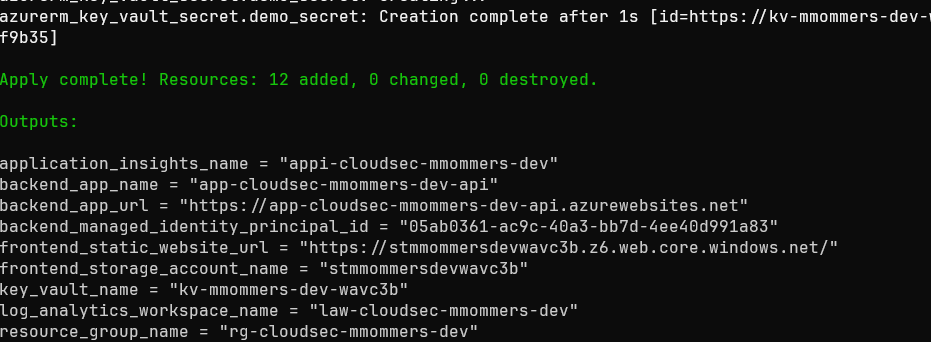
10. Show Terraform outputs
After deployment, show all outputs:
terraform outputUseful outputs include:
terraform output resource_group_name
terraform output backend_app_url
terraform output frontend_static_website_url
terraform output key_vault_name
You can also retrieve raw output values without quotes:
terraform output -raw resource_group_name
terraform output -raw backend_app_url
terraform output -raw frontend_static_website_url
terraform output -raw key_vault_name
These values are used in later setup and deployment steps. You can write these down or user terraform's cli to get them when needed.
11. Verify the created resources
List the resources in your lab resource group:
az resource list `
  --resource-group "$(terraform output -raw resource_group_name)" `
  --output table
You should see resource types similar to:
Microsoft.Web/sites
Microsoft.Web/serverfarms
Microsoft.Storage/storageAccounts
Microsoft.KeyVault/vaults
Microsoft.OperationalInsights/workspaces
Microsoft.Insights/components
You can also open the Azure Portal and search for your resource group.
12. Open the backend URL
Show the backend URL:
terraform output backend_app_urlOpen the URL in your browser.
Depending on whether the application code has already been deployed, you may see:
A working backend response
An Azure default page
An application error page
Most likely you would see:
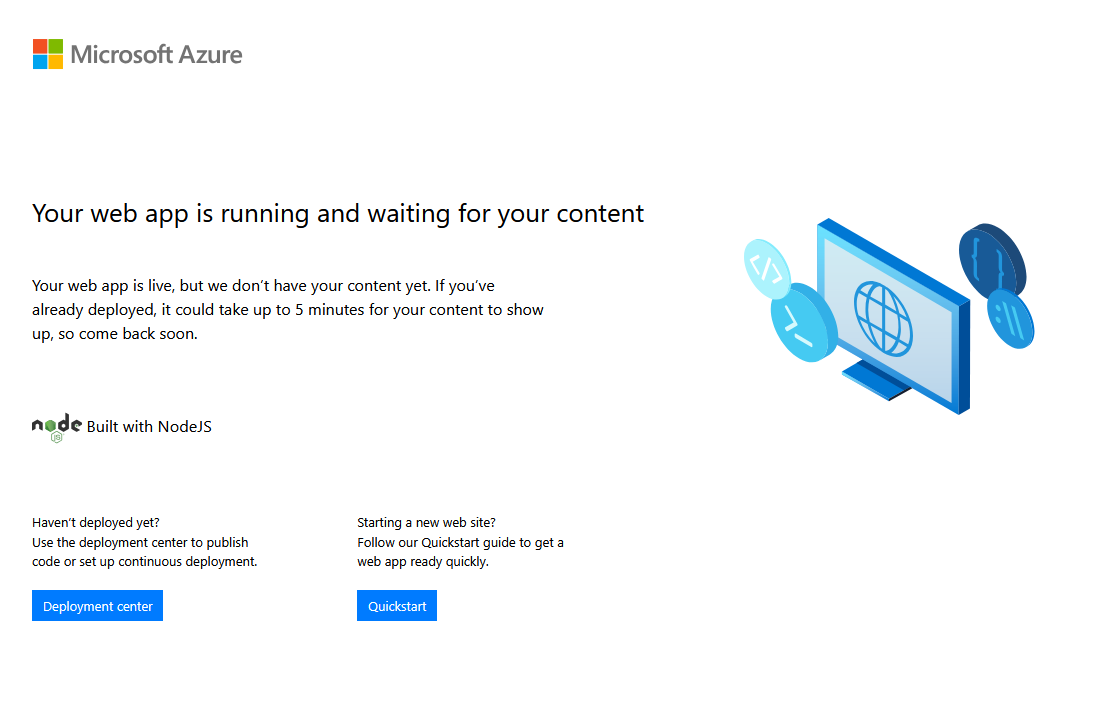
If the page takes a while to load, this might be because of a cold-start.
Cold-start
Cold start in computing refers to a problem where a system or its part was created or restarted and is not working at its normal operation. The problem can be related to initialising internal objects or populating cache or starting up subsystems.
Tips
The infrastructure deployment creates the Azure resources. The application code still needs to be deployed separately.
13. Open the frontend static website URL
Show the frontend static website URL:
terraform output frontend_static_website_urlOpen the URL in your browser.
Depending on whether the frontend has already been uploaded, you may see:
The frontend application
A blank/static website page
A 404 or missing content message
Most likely you see this:
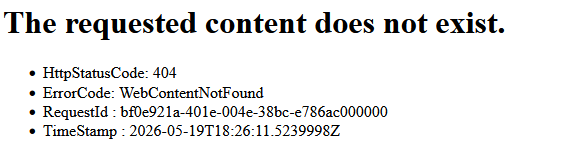
This is expected if the frontend files have not been deployed yet.
14. Important Terraform state warning
Terraform stores information about the deployed resources in a state file.
For this lab, the state is stored locally in files such as:
terraform.tfstate
terraform.tfstate.backup
Caution
Do not delete or manually edit the Terraform state file.
Without the state file, Terraform may no longer know which resources it manages.
Also do not commit local state or personal variable files to Git.
Make sure these files are ignored (add them to the .gitignore file):
.terraform/
terraform.tfstate
terraform.tfstate.backup
*.tfvars
15. Cleanup
Destroy the lab environment when instructed or before the end of each day this should be done to avoid unnecessary Azure costs. We only have a limited budget and when it's gone ... it's gone!
Run:
terraform destroy -var-file="student.tfvars"Terraform will show which resources will be destroyed.
Confirm with:
yesCaution
Only run terraform destroy from your own lab folder.
Before destroying resources, check that you are using the correct Azure subscription:
az account show --output tableNever destroy resources from another student, team, or environment.
16. Deployment checklist
Before continuing to the next lab, verify the following:
Deployment Checklist
17. Common problems
Terraform cannot create the Storage Account
Storage Account names must be globally unique.
Try changing your student_prefix in student.tfvars.
Terraform cannot create the Key Vault
Key Vault names must be globally unique.
Try changing your student_prefix, or ask the teacher whether a previous deployment with the same name still exists.
Terraform fails because Azure CLI is not logged in
Run:
az loginThen try again:
terraform apply -var-file="student.tfvars"Terraform deploys to the wrong subscription
Check the active subscription:
az account show --output tableSet the correct one:
az account set --subscription "<SUBSCRIPTION_ID_OR_NAME>"Then run the Terraform command again.
You do not have enough permissions
If Terraform fails with an authorization error, you may not have enough permissions in the Azure subscription.
Ask the teacher or lab administrator to verify your access.