Environment Setup
Day 1 - Getting Started
Before we start the Day 1 labs, make sure your local development environment is ready.
By the end of this setup, you should have:
- Visual Studio Code installed
- Git installed
- Azure CLI installed and working
- Terraform installed and working
- Access to the Azure Portal
- Azure CLI logged in to the correct tenant and subscription
- The course repository available locally
This setup prepares you for the Day 1 Identity and Access labs, where you will work with Azure resources, Terraform, RBAC, managed identities, and Key Vault. The broader course environment uses a small Azure lab setup with services such as App Service, Storage Account, Key Vault, Log Analytics, and Application Insights. :contentReference[oaicite:0]{index=0}
1. Install GoW on Windows
On Windows, we need Linux-compatible command-line utilities, especially zip.
Install GoW - GNU on Windows:
https://github.com/bmatzelle/gow/releases
GoW provides common GNU/Linux tools on Windows.
Alternative
Using Docker, WSL, or Git Bash is also fine, as long as you can create Linux-compatible zip files when needed.
2. Install Azure CLI
Azure CLI is required to interact with Azure from your terminal.
Install Azure CLI by following the official instructions for your operating system:
https://learn.microsoft.com/en-us/cli/azure/install-azure-cli
On Windows, the easiest option is usually PowerShell with winget:
winget install --exact --id Microsoft.AzureCLIAfter installation, close and reopen your terminal.
Verify the installation:
az versionInfo
We use the CLI as much as possible, but if you prefer the UI feel free to use it as well. Using the CLI now can make things easier later on (fi. in DevSecOps).
3. Log in to the Azure Portal
Open the Azure Portal:
Make sure you can log in with the account linked to the provided subcription for this course.
4. Set up MFA
Multi-factor authentication may be required before you can continue.
Open the MFA setup page:
https://portal.azure.com/#view/Microsoft_Azure_Resources/ArmMfaSettings.ReactView
Follow the instructions in the portal.
Warning
Do not skip this step if Azure asks you to configure MFA. Without MFA, some Azure actions may fail later during the labs.
5. Install Visual Studio Code
Download and install Visual Studio Code:
https://code.visualstudio.com/
We will use VS Code as the main editor for the course.
6. Install recommended VS Code extensions
Install the following extensions in VS Code:
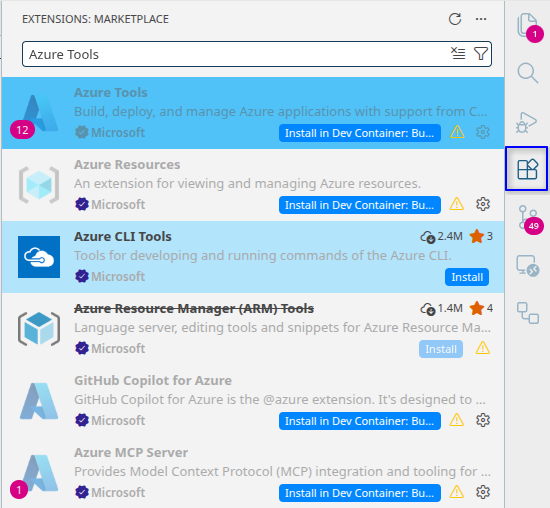
Search and install the following extensions follow instructions if applicable:
Azure Tools
Microsoft Terraform
HashiCorp Terraform
GitLens
Azure Resources
PowerShell
Some of these may already be included when installing the Azure Tools or Microsoft Terraform extension packs.
Optional but useful extensions:
YAML
Markdown All in One
7. Install Git
Download and install Git:
https://git-scm.com/install/windows
After installation, close and reopen your terminal.
Verify the installation:
git --version8. Install Terraform
Download Terraform:
https://developer.hashicorp.com/terraform/install
Install Terraform for your operating system.
On Windows, this usually means:
- Download the Terraform executable.
- Extract it to a folder on your computer.
- Add that folder to your
PATH. - Close and reopen PowerShell or your terminal.
Verify the installation:
terraform --version9. Check your local tools
Open a terminal in VS Code and run:
git --version
az version
terraform --version
You should see version information for all three tools.
If one of these commands fails, fix the installation before continuing.
10. Log in with Azure CLI
Run:
az loginA browser window will open. Log in with your course Azure account.
After logging in, check your current Azure account:
az account show --output tableCheck the following values:
- Subscription name
- Subscription ID
- Tenant ID
- Signed-in user
11. Select the correct subscription
If your account has access to multiple subscriptions, list them:
az account list --output tableSet the correct subscription:
az account set --subscription "<SUBSCRIPTION_ID_OR_NAME>"Verify the active subscription again:
az account show --output tableWarning
Always check the active subscription before running Terraform or Azure CLI commands. Running commands against the wrong subscription can create resources in the wrong environment or cause unnecessary costs.
12. Enable Azure CLI tab completion in PowerShell
Azure CLI tab completion can make working in PowerShell easier.
Open your PowerShell profile in VS Code:
code $PROFILEAdd the following code:
Register-ArgumentCompleter -Native -CommandName az -ScriptBlock {
    param($commandName, $wordToComplete, $cursorPosition)
    $completion_file = New-TemporaryFile
    $env:ARGCOMPLETE_USE_TEMPFILES = 1
    $env:_ARGCOMPLETE_STDOUT_FILENAME = $completion_file
    $env:COMP_LINE = $wordToComplete
    $env:COMP_POINT = $cursorPosition
    $env:_ARGCOMPLETE = 1
    $env:_ARGCOMPLETE_SUPPRESS_SPACE = 0
    $env:_ARGCOMPLETE_IFS = "`n"
    $env:_ARGCOMPLETE_SHELL = 'powershell'
    az 2>&1 | Out-Null
    Get-Content $completion_file | Sort-Object | ForEach-Object {
        [System.Management.Automation.CompletionResult]::new($_, $_, "ParameterValue", $_)
    }
    Remove-Item $completion_file, Env:\_ARGCOMPLETE_STDOUT_FILENAME, Env:\ARGCOMPLETE_USE_TEMPFILES, Env:\COMP_LINE, Env:\COMP_POINT, Env:\_ARGCOMPLETE, Env:\_ARGCOMPLETE_SUPPRESS_SPACE, Env:\_ARGCOMPLETE_IFS, Env:\_ARGCOMPLETE_SHELL
}

Set-PSReadlineKeyHandler -Key Tab -Function MenuComplete
Save the file, then restart PowerShell.
Source:
13. Install Docker
Warning
Docker is optional for now, as we might not use it.
Install Docker Desktop:
https://www.docker.com/products/docker-desktop/
14. Install node
For the demo app we need node.js to build the necessary files, you can opt to use Docker if preffered (I can help with this if needed) or install node for windows:
Or use the direct link to get the MSI installer:
LTS
Use the LTS version as it's more stable and offers long term support for various updates and patches.
After installation you might need to add node to the path. Restart the terminal and run the following commands:
node -v
npm -v
15. Final setup checklist
Before continuing, make sure you can check off the following items:
Setup Checklist
16. Troubleshooting
Azure CLI is not recognized
Close and reopen your terminal.
If the problem remains, check whether Azure CLI was added to your system PATH.
Terraform is not recognized
Make sure the folder containing the Terraform executable is added to your PATH.
After changing PATH, close and reopen your terminal.
I am logged in to the wrong Azure tenant or subscription
Run:
az account list --output tableThen select the correct subscription:
az account set --subscription "<SUBSCRIPTION_ID_OR_NAME>"Check again:
az account show --output tableAzure asks for MFA
Complete the MFA setup in the Azure Portal before continuing.
PowerShell tab completion does not work
Restart PowerShell after editing your profile.
You can also continue without tab completion. It is helpful, but not required. If needed you can ask help 😃